
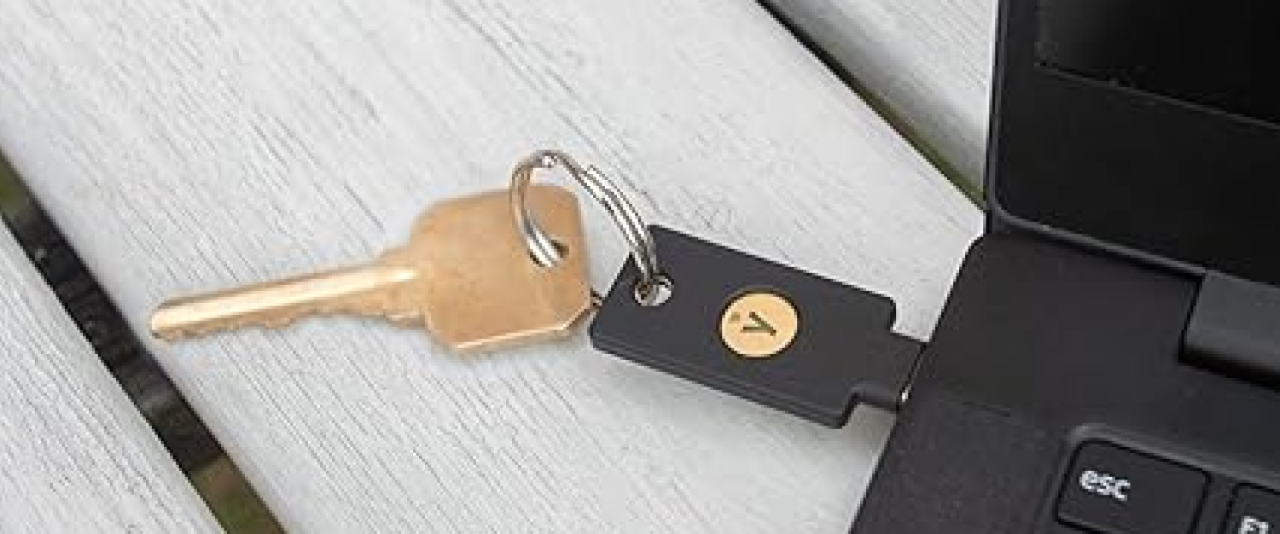
This article will walk you through three ways to change or reset the FIDO2 PIN on Yubico security keys using macOS.
Video tutorial:
Important notes before you begin
• Resetting your FIDO2 PIN will delete all accounts that the key was registered to via FIDO U2F or FIDO2.
• Before resetting, check which accounts the key is connected to and make sure you can set up access again.
• The PIN can be from 4 to 63 alphanumeric characters. Special characters are theoretically supported, but Yubico recommends using only letters and numbers for stable operation.
• If the PIN is entered incorrectly 3 times in a row, the key must be removed and reinserted.
• If the PIN is entered incorrectly 8 times in a row, the FIDO2 feature will be blocked and will need to be reset.
• You can optionally not set a PIN, but some services may require it.
Which Yubico keys are these instructions suitable for?
These instructions work for all Yubico models, including:
• Security Key
• Yubikey 5
• Bio series
Method 1. Via Google Chrome
1. Open Google Chrome.
2. In the search bar, type chrome://settings/securityKeys and press Enter.
• Or open Settings → Privacy & Security → Security → Manage Security Keys.
3. Insert the YubiKey into a USB port and press the button on it
4. Click Create or change PIN on your computer.
5. Enter your current PIN, then a new one twice.
6. Click Save - done!
How to reset your PIN via Chrome?
1. In the same menu, click Reset Security Key.
2. Remove the key, insert it again and press the button on it.
3. Confirm again by pressing the button on the key.
4. Done! The PIN and all FIDO2 accounts are deleted.
Method 2. Via Yubico Authenticator
This method works on macOS, Windows and Linux.
How to change the PIN?
1. Download Yubico Authenticator from the official Yubico website
https://www.yubico.com/products/yubico-authenticator/
2. Open the application and insert the key into your MacBook.
3. On the left, select Passkeys.
4. Click Set or Change PIN.
5. Enter a new PIN and repeat it.
6. Click Confirm - done!
How to reset the PIN via Yubico Authenticator?
1. Go to the Home section.
2. Select Factory Reset.
3. Select FIDO2 and confirm the reset.
4. Remove the key, insert it back and press the button.
5. Done! The PIN and all configured accounts are deleted.
Method 3. Via Yubikey Manager
How to change the PIN?
1. Download Yubikey Manager from
The official Yubico website https://www.yubico.com/support/download/yubikey-manager/
2. Open the program and insert the key into the USB port of your MacBook.
3. At the top, click Applications → FIDO2.
4. Click Set or Change PIN.
5. Enter a new PIN and repeat it.
6. Done!
How to reset the PIN via Yubikey Manager?
1. In the FIDO2 tab, click Reset.
2. Confirm the reset by clicking Yes.
3. Remove the key, reinsert it, and press the button.
4. Done! Your PIN has been reset.
Conclusion
There are three ways to change or reset your FIDO2 PIN on your MacBook:
1. Via Google Chrome
2. Via Yubico Authenticator
3. Via Yubikey Manager
Resetting your PIN will erase all FIDO2 settings on your key. So be sure to check your access to important accounts before resetting!


