
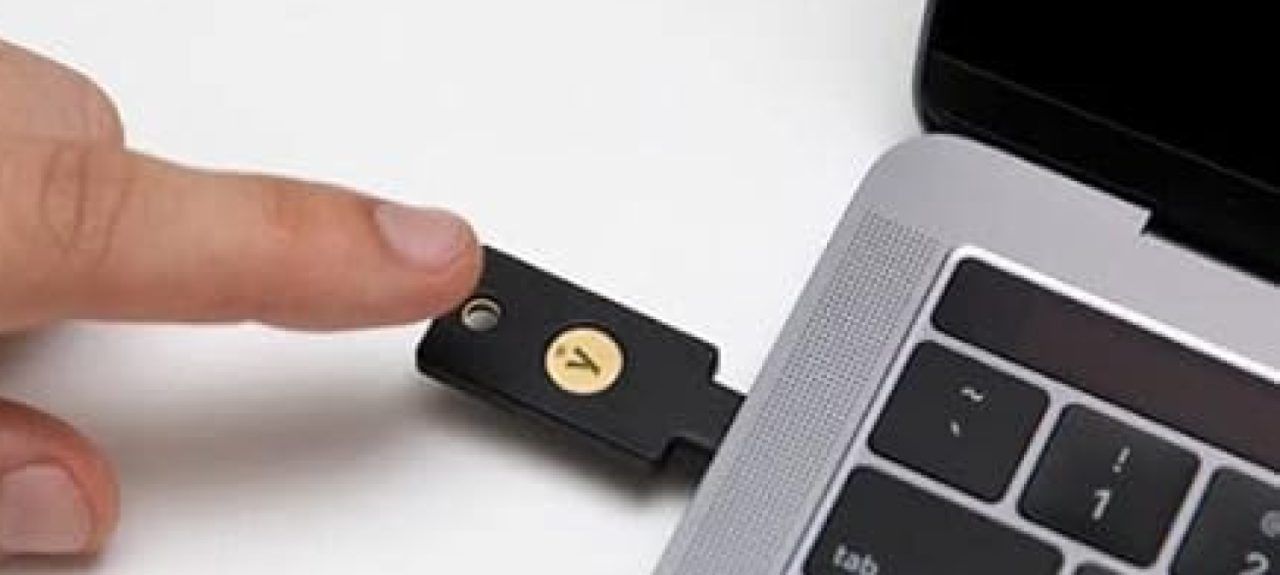
Digital security is an important thing to consider in advance. Using hardware security keys like Yubico is one of the most effective ways to protect your accounts. Working with the FIDO2 and U2F standards, these keys are a great way to provide two-factor or passwordless authentication.
However, to fully utilize the key, you may need to set up a FIDO2 PIN. In this article, I will explain how to properly set, change, or reset the FIDO2 PIN on Yubico security keys using the Windows operating system.
Text instructions
There are several ways to set, change, or reset the FIDO2 PIN on Yubico security keys using a Windows computer:
1. Through the built-in Windows settings
2. Using the Yubico Authenticator application (available for Windows, macOS, and Linux)
3. Using the Yubico Manager (available for Windows, macOS, and Linux)
Let's take a closer look at each of these methods.
Setting or changing your PIN through Windows settings
This is the easiest way, as you don't need to install any additional programs.
How to set or change your PIN
1. Open Start and go to Settings (the gear icon).
2. Go to Accounts > Sign-in options.
3. Scroll down and click Security key > Manage.
4. Insert your YubiKey into a USB port on your computer.
5. Press the button on the key to confirm the operation.
6. Next, you can set a new PIN code or change the old one.
How to reset the PIN code (Reset FIDO2)
1. In the same menu, click Reset.
2. Read the warning: after resetting, all configured accounts will be deleted from the key.
3. Click Continue.
4. Remove the YubiKey from the port and insert it again.
5. Within 10 seconds, quickly press the button on the key twice.
Done! The PIN code has been reset, and with it all associated accounts have been deleted.
Setting, changing or resetting the PIN code via Yubico Authenticator
The Yubico Authenticator program is available for Windows, macOS and Linux. It allows you to view accounts, change the PIN code and reset the key to factory settings.
Download Yubico Authenticator
• Windows/macOS/Linux: Download from yubico.com
How to change your PIN via Yubico Authenticator
1. Open Yubico Authenticator.
2. Insert your YubiKey into a USB port.
3. For Windows: If prompted for access, accept it.
4. Select Passkeys in the left pane.
5. Enter your PIN to view your accounts.
6. Click Change PIN (on the right).
7. Enter your old PIN, create a new one, and re-enter it.
Done! Your PIN has been successfully changed.
How to reset your PIN via Yubico Authenticator
1. Open the app and insert your YubiKey.
2. Go to the “Home” menu.
3. Click Factory Reset on the right.
4. Select the FIDO2 protocol and click Reset.
5. Remove the YubiKey, reinsert it, and press the button on the key for final confirmation.
Done! The PIN code is reset and all accounts are deleted.
Good to know:
• The program shows the number of unsuccessful PIN code entry attempts.
• After 3 unsuccessful attempts, you need to remove and reinsert the key.
• After 8 unsuccessful attempts, the PIN code will be blocked, and the key will have to be completely reset.
Setting or resetting the PIN code via Yubico Manager
The Yubico Manager program gives you even more control over the key settings.
Downloading Yubico Manager
• Windows/macOS/Linux: download from yubico.com
How to set or change the PIN code via Yubico Manager
1. Open Yubico Manager.
2. Insert the YubiKey into a USB port.
3. In the top menu, select Applications > FIDO2.
4. Click Set PIN (if you haven’t set a PIN yet) or Change PIN (to change it).
5. Enter the new PIN, repeat it, and confirm.
Done! Your PIN has been set or changed.
How to reset your PIN via Yubico Manager
1. Open Yubico Manager and insert your YubiKey.
2. Go to Applications > FIDO2.
3. Click Reset.
4. Read the warning: all accounts configured via FIDO2 will be deleted.
5. Confirm the operation by clicking Yes.
6. Remove your YubiKey, insert it again, and click the button to confirm.
Done! Your PIN has been reset, and your key has been reset to factory settings.
Conclusions
Choose the method that is most convenient for you, and remember: the security of your accounts depends on the correct configuration of your key!


